

Ideas don’t wait for convenient moments. The best ones tend to arrive mid-run, between meetings, on the drive home… anywhere other than in front of a blank document where you could actually do something with them. By the time you’re at your desk, the clarity is gone and you’re left trying to reconstruct something that felt obvious twenty minutes ago.
Zinggit is built around the recognition that the gap between having an idea and writing it up is where most content dies. It’s a voice-to-content platform: record a voice note, and Zinggit turns it into a finished, publish-ready piece of content for whichever channel you’re working toward — blog posts, LinkedIn updates, YouTube scripts, newsletters, short-form video scripts, or presentations.
Here’s how it works, from first recording to published content.
The core workflow
The basic loop is fast. Open the app on your phone or desktop, tap the New button, and start recording. Speak naturally — your idea, your argument, your story, your brain-dump. There’s no time limit and no need to be polished. The transcription step that follows is designed to handle natural, unscripted speech, so worrying about filler words or false starts is wasted energy.
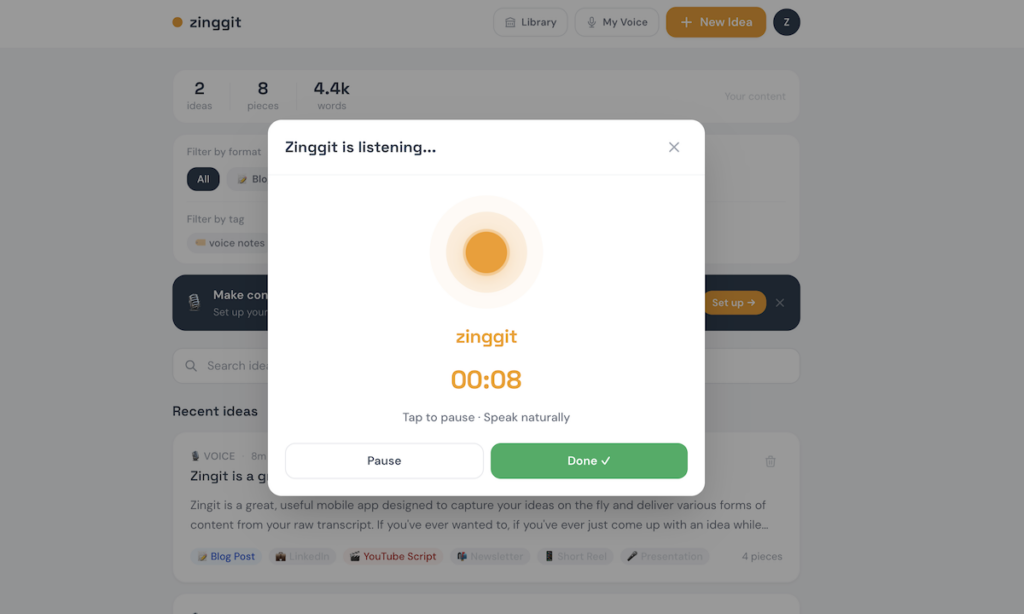
When you stop recording, Zinggit transcribes the audio automatically. The transcript is cleaned up — filler words removed, punctuation and paragraph breaks added — and you land on the content screen ready to generate. From there, you choose a format and hit Zingg it. The transcript is passed to an AI (all data is secure and never shared with third parties), which generates a complete, structured piece of content for the chosen format in around 15 seconds.
The six available formats are:
- Blog post — long-form, structured, designed to rank and to read
- LinkedIn post — conversational, opinion-driven, formatted for feed engagement
- YouTube script — spoken-word structure with natural pacing, no camera directions
- Newsletter — written directly to one person, not broadcast to a list
- Short reel script — tight, punchy, designed for 30-90 second video content
- Presentation — structured to be delivered aloud, not read from a slide
You can generate all six from a single transcript. It’s worth doing — a voice note that makes a good LinkedIn post will often make an even better YouTube script, and you won’t know until you try.
Recording types — telling Zinggit what it’s working with
Not every voice note is the same kind of input, and treating them the same produces inconsistent results. Zinggit has a recording type selector on the content screen that lets you flag what kind of recording you’ve made. It’s optional — Auto works well for most things — but using it gives you noticeably more tailored output.
- Auto: Zinggit reads the transcript and makes its own judgement. A sensible default.
- Dictation: For recordings where you’ve already structured your thoughts and spoken in roughly the order you want the final piece to take. Zinggit applies strict fidelity — it preserves your sequence and phrasing rather than rewriting.
- Idea: A defined concept that needs developing. Zinggit expands it into a complete piece while staying anchored to what you actually said.
- Brainstorm: Raw, non-linear thinking with multiple threads. Zinggit identifies the strongest thread and builds from it. Re-Zingg on a brainstorm is particularly useful — it can take a completely different angle on the same material next time.
- Prompt: You’re giving an instruction rather than recording content. “Write me a comparison of X and Y” or “put together a piece about Z” — Zinggit treats these as briefs and fulfils them from its own knowledge.
- Meeting: For multi-speaker recordings. See below.
- Media: For repurposing existing produced content — a podcast, a recorded interview, a video. Zinggit treats it as polished source material and adapts faithfully rather than rewriting.
Working with meeting and interview recordings
Multi-speaker recordings need a slightly different approach. Before recording a meeting or interview, toggle on Multi-speaker on the recording screen. This tells Zinggit to label different voices in the transcript — Speaker 1, Speaker 2, and so on.
Once you have the labelled transcript, set the recording type to Meeting. In this mode, Zinggit understands it’s working with collaborative, unstructured input. For interviews, it treats the guest’s contributions as the primary content and uses the interviewer’s questions as structural anchors. For collaborative discussions, it synthesises collective thinking into a single-voice piece. For debates or discussions with contrasting views, it represents those tensions honestly rather than flattening them.
A practical tip: if you have a long meeting transcript with several different subject areas, trim the transcript to the section you want to turn into content before generating. A focused 500-word excerpt will produce better output than a 3,000-word full recording with unrelated sections mixed in.
Re-Zingg and refine — improving the output
First-pass output is good, but it’s rarely where the work ends.
Re-Zingg generates an entirely new version of the same format from the same transcript. It’s not a rewrite of the first piece — it’s a fresh attempt, which often takes a different angle, different opening, different structural choices. On brainstorm-type recordings especially, Re-Zingg can produce pieces that feel genuinely different because they’re built on a different thread from the same source material.
The Refine tool lets you give specific instructions to improve the existing content without regenerating everything. Useful instructions include:
- “Make this 30% shorter without losing the core argument”
- “The opening feels too generic — rewrite just that paragraph to be more direct”
- “Make the tone less formal throughout”
- “Remove the second section and focus the whole piece on the first point”
- “Rewrite the closing to end with a question rather than a statement”
The AI applies the instruction to the existing piece rather than starting from scratch — useful for surgical improvements when most of the content is working.
One thing worth saying clearly: AI-generated content is excellent but not infallible. It can occasionally miss a nuance, reach for a slightly generic phrase, or structure an argument in a way that’s technically correct but not quite how you’d say it. Always read through before publishing. The goal is to make that read-through a quick one — a few small edits rather than a major rewrite — but it’s an important step regardless.
Adding more to an existing voice note
If you recorded a first take and then thought of something important you left out, you don’t need to start over. The Add more Zingg option lets you extend an existing transcript by recording an additional voice note or typing content directly into an append panel.
Both are merged intelligently with the existing transcript. Once extended, Re-Zingg any format to regenerate using the complete picture. This is useful for adding a statistic you looked up after recording, including a relevant example that came to mind later, or appending a call to action you forgot.
The Strategy tab
Available on Pro plans, the Strategy tab runs a deep analysis of your transcript before you generate content. This is especially useful for content strategists or creators with less of an SEO focus. The strategy tab produces:
- Keyword data mapped to your transcript — head terms, mid-tail, and long-tail phrases your content could own
- A content brief for each format, including recommended structure, a hook draft, and key claims to substantiate
- Content gaps — questions your reader will have that the current transcript doesn’t answer
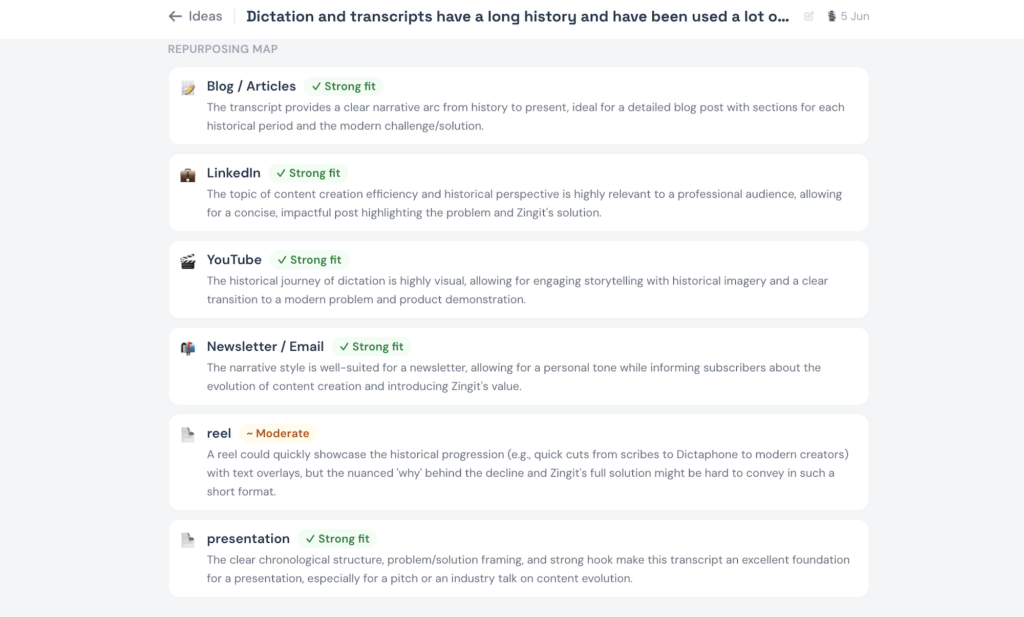
- A repurposing map showing how well the content fits each format and why
- AI search optimisation recommendations, including the primary question your content should answer and structural suggestions for appearing in AI-generated results
Run Strategy before generating, not after. Use the brief and keyword data to decide which format to prioritise and whether you want to add more to the transcript first.
My Voice — making the output sound like you
The My Voice tab is where Zinggit learns to write in your voice rather than a generic one. There are two components.
The tone profile is set up manually. You write a short description of how you naturally communicate, choose a formality level, add specific voice traits (“uses specific examples rather than generalisations”, “prefers short conclusions”, “avoids corporate language”), and paste an example sentence written in your natural voice. You can also seed the profile with a longer piece of existing writing — a blog post, a series of LinkedIn updates — which gives the AI a richer model of your voice than a description alone provides.
The voice fingerprint is built automatically from your recordings over time. After two or more voice notes of reasonable length, Zinggit analyses patterns in how you actually speak — vocabulary, sentence rhythm, how you structure arguments — and builds a fingerprint that gets applied to all content generation. It updates as you record more, and becomes noticeably more accurate after 10 or 20 recordings. If you already have ideas in your library, the Learn from my existing ideas button in the Learned tab bootstraps your fingerprint immediately without waiting for new recordings.
Both your tone profile and your fingerprint are applied whenever you generate content. They’re complementary: the profile gives explicit instructions, the fingerprint adds the implicit patterns. Together they’re the difference between output that sounds like good AI writing and output that sounds like you.
Getting started
The fastest way to understand Zinggit is to record something and see what comes back. A 60-second voice note about something you know well — an opinion, a recent observation, a professional lesson — is enough to generate a full LinkedIn post in under two minutes. From there the features make more sense in context.
Your ideas are already there. Zinggit’s job is to make sure they don’t disappear before they reach anyone.